Archive for the ‘Tutorial’ Category

Park Adventures And How To Use Fonts As Die Cuts

Wednesday, September 1st, 2010

Park Adventures

[Fonts: Impact and Adler; Digital Kit: KD Crush by Karla Dudley.]

As a scrapbooker, or a memory archiver, I find myself doing things I would never imagine doing, just for the sake of collecting visual memories.

This layout is a wonderful example of such irrational behavior.

The pictures in the layout were taken with a regular 55mm lens – no tele lens, no zoom – I was standing right in front of the huge bear.

Gladly, I caught Mr. bear on a good day…
(I hope he isn’t traumatized by the insane human who ran after him with a camera)

How To Create Digital Letter Die Cuts

In this layout I used Karla Dudley’s newest digital kit, “KD Crush”, which will be available tomorrow at the Digichic online store. The kit is based on a natural color palette, just in time for fall and includes beautiful papers, brushes and elements (including an alpha set).

However, I used it a bit differently by masking the patterned paper to a regular true type font.

Here is how I made the title for my layout above:

  1. Choose any font, preferably a dominant one, such as “Impact” to give room for the digital patterned paper.
  2. Type down your title, each word separately to allow maximum control over its position.
  3. Decide what is the FINAL position and size of each letter in the title.
  4. Simplify all the title layers (by right clicking on each layer and selecting “simplify”).
  5. Merge the layers together (just select all the relevant layer and then right click on your selection and opt for “merge layers”. To select a couple layers together press the CTR or CMD key while clicking on the layers).
  6. Insert any patterned paper and make sure its layer is directly above the title layer.
  7. Mask the two layers together by pressing “CTR+G” or “CMD+G”.
  8. You may now merge the 2 layers together to add a drop shadow or leave it as is.

Share

Have you ever acted out of character just to take a picture or preserve a memory? Please share your story by leaving a comment here.


Welcome Little One Workshop
Check out Creativity Prompt’s new and unique self paced workshop: “Welcome Little One”. This workshop will provide you with everything you need, and then some, to make a fabulous handmade mini album to record the first moments of a new born baby.


How To Change the Color of the Journaling Tags

Wednesday, August 4th, 2010

I have been posting a lot of free printable journaling tags.

I have been asked several times how can you change the color of these tags with a photo editing software, such as Photoshop or Photoshop Elements and each time I answered individually.

It took me a while to figure out that my answer may interest many of you too, so here it goes:

  1. Open the pdf file with photoshop.
  2. Open a new layer underneath the file layer.
  3. Make sure your file layer is highlighted and pick the white in the file, using the magic wand tool.
  4. Press delete.
  5. From the menu bar choose “Edit” =>”Fill in layer” => choose “color” and change it to any color you want.
  6. Fill in the “preserve transparency” check box and click “apply” or “ok”.
  7. If the last 2 steps don’t work for you, try to press CTR+U or CMD+U and change the hue and saturation settings.

I hope that helps you guys :)

Have a great day.

Nip and Tuck Your Digital Brushes

Thursday, June 3rd, 2010

Celebrate Seven

[Font: Adler; Digital Kits: KD Happy Day & KD Digi Essentials 5 (the number 7) - all by Karla Dudley.]

I may be prejudiced but I think my niece has the brightest, most beautiful smile I have ever seen.

I’d send some celebrities over for a red carpet seminar if I could. I really would.

Anyways…

This is the third birthday that I have missed and I am forever grateful that my sister takes the time to take the pictures as well as send them my way. I value these pictures so much, in fact, that I always immediately try to put together layouts with the stories behind the photos. As I only live vicariously through these photos, the stories I can tell aren’t so long and detail oriented. I mostly just try to capture the moment visually – as I imagine it had been.

In this layout I used Karla Dudley’s new kit: KD Happy Day, almost exclusively (minus the digit ’7′). On the right corner of my layout you may find a word-art image: “Celebrate today, it’s yours”. If you take a moment and look at the kit, you won’t find this image as it shows on my layout. Why? Because I had engaged myself in a minor digital surgery… Nipping the second part of the sentence and tucking it underneath.

Rearranging a digital image is basically the same as snipping a clear stamp off and repositioning its parts to conform to your design and needs (or inking up a different part of the stamp each time). Here is how to do that:

How To

  1. Open your image on Photoshop Elements. (If you are concerned about writing over your original image, use the ‘open as’ option.)
  2. Pick the rectangle selection tool and by clicking and dragging, choose the part you wish to sever. When you are done you will see the marching ants sign around the outline of the image. Make sure you haven’t accidentally picked any other part of the image. If you did – just choose it, while clicking the ALT/OPT key, to deselect.
  3. Make sure the layer of the image is selected – it will be highlighted if so.
  4. Pick the move tool and click and drag the part you have selected to its new place – it’s that easy. (You may also delete it altogether by clicking the DELETE key while it’s selected).
  5. Be careful not to get addicted and makeover your entire stash of digital images.

Share

Have you ever tried to alter your digital stash (or your traditional stash…)? Please, do share. Just leave a message and brag.


Make Your Own Planner Workshop
Check out Creativity Prompt’s self paced workshop: “Capture Your Dream”. In this workshop you will capture, follow and make your dream come true as well as document your journey in a fabulous mixed media mini album.


Hybrid Card – Using Digital Alpha Sets

Wednesday, June 2nd, 2010

Hybrid Thanks Card

[Supply: You Are Amazing (woodgrain alpha) by Shimelle Laine for Two Peas In A Bucket, Basics + Cappella (patterned paper + small alpha stickers) by Basic Grey, Rhinestones by Kaiser Scrapbooks, Earthtones cardstock by American Crafts, White gel pen by Uniball, Foam dimensionals.]

Step By Step Instructions

Using Digital Alphas

  1. Open a new document in Photoshop Elements: Width: 8.5″ Height: 11″ DPI: 300.
  2. Use the rectangle shape tool and add a rectangle, sized 4.25″ by 5.5″. By doing that you make sure the size of your alphas will be perfect.
  3. Open up all the different letters you need for your greeting from the kit. Use the move tool to drag and drop them on your new document.
  4. Before positioning the letters you need to resize them. To do that, line them all up in one straight line – regardless of the way you want to put them on your card.
  5. Pick all the layers with the letters (Just click on the layer with your CTR/CMD button pressed down) – make sure they are all highlighted.
  6. Pick the move tool ,then press align and opt for the center alignment.
  7. While your layers are still all highlighted – click on one of the edges of the word and drag the cursor towards the center. This way you are resizing the letters proportionally.
  8. After you get to a size you are please with, position the letters the way you want them on the card. The rectangle shape you drew earlier will help you keep the proportions and size right.
  9. Conceal the layer with the rectangle shape by clicking on the eye icon and print your page on a white, smooth cardstock.
  10. The alphas on Shimelle’s new kit have a faint outline that you can use as cutting guidelines.

Assembling The Card

  1. Cut the patterned background paper to 5.25″ by 4″, adhere to your cardstock base.
  2. Cut the accent piece of patterned paper in a curve (using an ellipse cutter – I used Coluzzle) – make sure the base is 4″ wide.
  3. Ink up the top edge of your curved paper and adhere it to the bottom of the patterned paper you adhered before.
  4. Adhere the individual letters with foam dimensional stickers. Cut the foam adhesive down to size if needed.
  5. Add the letter stickers and the rhinestones.
  6. Give the card to a friend to show that you care and to say thank you…

Share

Who would you like to say thanks to? Have you made a hybrid card before? Share by leaving a comment here :)


Think Outside the Box – Literally + Selective Coloring With Photoshop Elements

Thursday, May 6th, 2010

One way to get out of a creative rut is to use our stash – not as intended…

Use a “girly” collection for a boy’s layout or vice versa [as I did below].
Use a Christmas collection for a 4th of July layout.
Use a travel collection for a wedding.
Use patterned paper as a background and plain cardstock as an accent.
Use paper flowers as journaling blocks.
Use a winter themed paper for a summary layout.

Just ignore what the “box” says and create.
Free your mind.

In this layout I used Karla Dudley’s new kit KD Fly Girl for a manly layout of my husband shooting hoops at the beach:

i Heart you

[Fonts: Marketing Script, VTPortableRemington; Digital Kits: KD Fly Girl by Karla Dudley.]

And in this layout I used Karla’s KD Fly Boy kit to create a girlie-girl layout featuring my princess niece:

Believe

[Font: Rough Typewriter; Digital Kits: KD Fly Boy by Karla Dudley.]

Photoshop Elements Tip – Selective Coloring

On my “I heart You” layout I turned my photos to black and white (by de-saturating them) and kept just the vibrant yellow color of the ball.

The azure sky and turquoise ocean are beautiful, but they are distracting from the story I want to tell.

By removing the color of everything but the ball – I am drawing attention to it and hinting that the focus of my story is there.

There are 3 ways to get that look – choose the one most comfortable to you:

Method 1

  1. Duplicate the photo’s layer (press CTRL+J on a PC or CMD+J on a MAC).
  2. Make sure your upper layer is highlighted and de-saturate the colors all the way to the left (press CTRL+U on a PC or CMD+U on a MAC).
  3. Make sure your upper layer is highlighted and choose the eraser tool (work with the default circular brush). Lightly erase just the object whose color you’d like to retain.
  4. Merge both layers when you’re done.
  5. [P.S. This is also how I "colored" the heart red on the kit's PNG file.]

Method 2

  1. Duplicate the photo’s layer (press CTRL+J on a PC or CMD+J on a MAC).
  2. Make sure your upper layer is highlighted and de-saturate the colors all the way to the left (press CTRL+U on a PC or CMD+U on a MAC).
  3. Make sure your upper layer is highlighted and choose the Quick Selection Tool. Click on the object whose color you wish to retain until it is highlighted completely by the marching ants. If you “slip” just unselect by pressing ALT on a PC or OPT on a MAC while simultaneously clicking on the part you don’t want selected.
  4. Press delete.
  5. Merge both layers together.

Method 3

  1. Choose the Quick Selection Tool. Click on the object whose color you wish to retain until it is highlighted completely by the marching ants. If you “slip” just unselect by pressing ALT on a PC or OPT on a MAC while simultaneously clicking on the part you don’t want selected and duplicate your selection (press CTRL+J on a PC or CMD+J on a MAC).
  2. Deselect (press CTRL+D on a PC or CMD+D on a MAC)
  3. Make sure your lower layer is highlighted and de-saturate the colors all the way to the left (press CTRL+U on a PC or CMD+U on a MAC).
  4. Merge both layers together.

Share

Are you using your stash in an untraditional way? Please share your ideas/ projects with us.


Be Playful – Creativity Prompt

Wednesday, April 21st, 2010

Dress Up - playful Layout

[Fonts: Rough_typewriter, Barnes_erc_; Digital Kits: KD Tweet, KD For The Boy, KD Frame Essentials - all by Karla Dudley.]

All work and no play? not in my (scrap)book!

Scrapbooking is important.
Telling the story is important.
Perpetuating memories is important.

saying that, scrapbooking is also a hobby.
As a hobby it’s supposed to be awesome.
As a hobby it’s supposed to be fun.
As a hobby it’s supposed to conform to OUR rules – not vice versa!

So I am very much into inserting some more playfulness into the process.

In this layout, with help from Karla Dudley‘s playful designs and a playful free font I have injected a much needed gaiety and cheerfulness into my layout.

The bird, for instance, is actually made out of 3 different images from the KD Tweet kit, that I layered and locked into one layer. You may need to adjust the angle of the image a bit (move your mouse cursor next to the top edge of the bounding box until it looks like a rounded arrow, then click and drag slightly up or down). I also “built” the bird-swing by using different images together, not necessarily the way one would traditionally use them.

You can mimic this idea/look with traditional “hard-copy” products by layering embellishments together or using things a bit differently than usual.

It made me smile. It might make you smile too!

Photoshop Elements Tip
How did I make the labeler-like strips?

Easy!

  • Use the rectangle shape tool to draw a short and wide strip. Make sure your shape color is black.
  • Choose the type tool and pick a typewriter font, make sure your font color is white.
  • Click on your rectangle and start typing. Click twice to commit.
  • Choose the move tool and pick 2 layers – the shape and the type (make sure they are both highlighted).
  • Click on the ‘align’ button at the top of your window and align the 2 layers together, both vertically and horizontally.
  • Lock the layers together to keep the alignment.
  • Repeat.

Share

How do you insert playfulness to your layouts? Share by leaving a comment (or a link to your playful layout)


Is It Spring Yet – Sharing A Layout And A Techniqe

Tuesday, April 6th, 2010

Is It Spring Yet

Supply

  • cardstock: Bazzill
  • Patterned paper: My Minds Eye “Home” (pale blue), Autumn Leaves (text)
  • Adhesive: Fabri Tac by beacon; Glue Glider Pro by Glue Arts; 2 Way Glue by EK Success.
  • Letter Stickers: American Crafts “Lullaby” Thickers (white), Generic from the Dollar bin at Target (turquoise), Jenni Bowlin Tiny Circle Stickers.
  • Tools: Punches: EK Success (scallop border punch), Martha Stewart (starburst); Stapler: Tiny Attacher by Tim Holtz.
  • Journaling tag: Creativity Prompt.
  • Ribbon: American Crafts (Dotted), Generic and o-l-d (seafoam thin satin)
  • Jewels: generic.

How To

Pleated Ribbon

  1. Attach the edge of your ribbon with 2 tiny staples.
  2. Apply a line of fabric glue. Fabri Tac is WONDERFUL. (I wish I was endorsed by Beacon. I am not)
  3. Pleat the ribbon along the glue line irregularly to create a messy look. don’t worry about the pleats opening up at this stage.
  4. Go back and apply a bead of glue underneath each “pleat” to keep it in place.

Ribbon Flower

Also Known as – what to do if you run out of ribbon while pleating but happen to have a similarly colored ribbon at hand…

  1. Put a drop of fabric glue where you want your flower center to be at and adhere the tip of your ribbon strip to it.
  2. Apply some more glue around the glued edge and start turning your ribbon around it, flipping the ribbon occasionally.
  3. Keep applying more beads of glue around and building your “flower” until you are satisfied with its size.
  4. Cut off the excess ribbon and tuck the end underneath one of the pleats with another bead of glue.

Share

Is it spring yet? Share your thoughts by leaving a comment.
If you give the techniques a try – pweeeeeze share :)


Make Your Own Planner Workshop
Check out Creativity Prompt’s self paced workshop: “Capture Your Dream”. In this workshop you will capture, follow and make your dream come true as well as document your journey in a fabulous mixed media mini album.


Do You Know An Angel – Journaling Prompt + How To Make Personal Digital Word Art

Monday, April 5th, 2010

not All Angels Wear Wings

[Digital Kits: KD Cardstock Essentials, KD Blakely & KD Capture + Record - All by Karla Dudley]

Do you know an angel?

I know one.

My angel has a pure heart and beaming eyes.

My angel only knows one feeling. My angel knows LOVE.

My angel doesn’t envy. My angel isn’t mad. My angel doesn’t compete. My angel doesn’t hurt. My angel doesn’t lie. My angel doesn’t swear. He NEVER does. Ever.

My angel doesn’t wear wings, does yours do?

[In this layout is my nephew Shoham, 9 years old.]

Digital Tip

I created the word art in this layout my self. This is how I did it:

  1. First, I wrote my words on a white paper with various pens (both plain black pens and black calligraphy pens).
  2. Next, I scanned my paper in high resolution (600 dpi) and saved it as a JPG file.
  3. Then I opened the file with my Photoshop Elements and cranked up the levels [ctr+L/CMD+L]. Turning the “black” dial all the way to the first peak and the mid-tones dial all the way to the black one. The effect you are looking for is to have all the black parts REALLY black and all the white parts REALLY white.
  4. Then I turned my background layer into a simple layer, by clicking on it twice and opened a new layer beneath it.
  5. I made sure that I am on the original layer and picked up all the white parts with the Quick Selection Tool. I then pressed “delete” and the transparent layer showed up where the white used to be. I picked each of the small cavities inside the letters (e.g. the O’s and A’s) individually and deleted these white parts too.
  6. Then I merged the two layers together (merge not simplify!) and saved the file as a PNG file to keep the transparent attributes.
  7. Once your text is on a transparent background, you can select each word and each letter individually with the selection tool and then adjust its height and width with the move tool.

Give it a try, it is so simple and it lets you inject some personality to the digital layout. No tablet is necessary!

Share

Who is the angel in your life? share your thoughts by leaving a message.

Are you planning on giving the digital word art a try? If you do, please share your work with us.


Unleashing The Creative Child Within You


Simple Cards To Create In Minutes

Thursday, April 1st, 2010

Thank You Card

Thank You Card

Supply

How-To Pointers

  • For the greeting, all I did was to open a new 8½” by 11″ document at 300dpi and write “Thank You” in black with the text tool. Than I duplicated the layer a few times and changed the size by dragging the edge of the bounding box. I Positioned each layer randomly and changed the opacity of each layer. Then I printed it on white cardstock, punched it and sprayed it with Glimmer Mist (immediately absorbing the excess liquid, so the ink won’t spread).
  • For the flower accent, I just adhered the dew drop on a Basic Grey paper with some Diamond Glaze. I’ve found it easier to put the glue on the dew drop and then press on the paper than to do that the other way around. Ranger Glossy Accents will also work great. I love it too. After the glue dries up, I cut around the dew drop, which also acts as a weight to help the gate-fold card stay shut.

I Love You Card

I Love You Card

Supply

How-To Pointers

  • The self adhesive fun foam wouldn’t go through the punch, so I punched a scrap piece of paper, adhered it to the backer of the fun foam (as the shape is symmetric), and cut around with precision scissors.
  • To attach the vellum greeting I used the Tiny Attacher and tried to aim the staples to the lines of the letters… almost successfully… I concealed the back of the staples with a strip of patterned paper I adhered to the back.
  • For the faux stitching box, I first marked it with a pencil, using a T-Square ruler and then went over it with American Crafts brown precision pen and erased the pencil marks.
  • This card isn’t standard. It’s a square card, measured 4¼” by 4¼”. It started as a standard card, but after finishing it I felt a smaller size would look better. Trial and error, that’s the way to go.

Thanks Card

Thanks Card

Supply

How-To Pointers

  • I made the flower from used dryer sheets and Glimmer mists. You may find the video tutorial here.
  • I used the scoring board to make the pleated cardstock “ribbon”. I just scored repeatedly in intervals of ½” and 1/8″ and folded the scoring lines later to create the pleats. A mountain fold after each ½” mark and a valley fold after each 1/8″ mark. Down and up and down and up… I attached it to the patterned paper with a line of glue runner, then supported it with 2 tiny staples that also attached the felt ribbon to it.
  • For the funky greeting, I first penciled it on the paper lightly (using 2 pencils held together to create the broad line), then I went over the lines with a black pen, erased the pencil marks and cut around it with precision scissors. I adhered each letter with a tiny foam dot to add dimension.

My favorite card is the first one, with the “photoshopped” greeting. Which one is yours?

Share

Have you recently made a card to show you care? Share your thoughts by leaving a comment or share your card on the Creativity Prompt Flickr Group.


Unleashing The Creative Child Within You
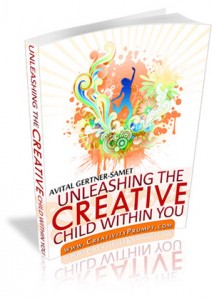
Back when we were kids creativity came naturally to us. Everything was possible and our prolific imagination was the only limit we knew.
Through the years we have grown apart from our inner creative child and along with that – have lost our pristine and utter joy of creation.

In this e-book I will pave your way back to your inner creative child, brick by brick.

“Unleashing The Creative Child Within You” will explain why you became distant from your core creativity and will reveal the secret to getting it back.
With exercises designed specifically to help you find the inner child within you, regain its confidence and unleash it – you are bound to get your mojo back faster than you think.

Your inner creative child wants to come out and play, so don’t disappoint it and get “Unleashing The Creative Child Within You“.


Gate Fold Thank You Card – Because You Care

Wednesday, March 24th, 2010

Thank You Card

I caved in. I admit it.

I thought a scoring board is redundant. Unnecessary.

But I bought one anyway…

…and i LOVE it!!!

When I buy new patterned paper, I usually store it immediately in my very own papers’ necropolis. However, when I buy new tools – I usually try them right away (sometimes they’re getting buried too). Same happened here, as soon as I got Martha Stewart’s scoring board I had an urge to score me some cards – it was so easy, so addictive.

So here I am, living with a small stack of blank, prescored cards and not doing anything with them. For a couple day. Then came the epiphany – use a journaling label for the greeting!

Simple. Easy. Striking. (If you don’t mind me sayin’…)
Thank You Card

Step By Step Instructions

  1. Cut your cardstock base at 8½” by 5½”. Score at 2 1/8″ and at 6 3/8″.
  2. Cut 2 panels of patterned paper, 5½” by 2 1/8″ each. I used Cosmo Crickt’s 6″ by 6″ Material Girl paper pad.
  3. Adhere the above panels to the panels at the front of the card.
  4. To print on the journaling label, I first printed the greeting on a plain paper (Erika Ormig font, 60Pt.) Then I adhered the label with removable adhesive to the plain paper, on top of the greeting and ran it through the printer again. [This specific labels set will be posted on the blog on Friday, so stay tuned]
  5. I adhered the printed label on another piece of patterned paper from the same pad and cut around it, leaving a nice fat gap. I used Fiskars spring-action scissors for that. They are very easy to manipulate around the curves.
  6. I applied adhesive to only half of the greeting “tag” and adhered it to the left panel – centering it between the two panels.
  7. Then I stuck on a Prima flower and a pearl and called it a happy day.
Share

Have you bought a cool tool lately? What is your favorite tool? Please share – I want to know :)


Make Your Own Planner Workshop
Check out Creativity Prompt’s self paced workshop: “Capture Your Dream”. In this workshop you will capture, follow and make your dream come true as well as document your journey in a mixed media mini album.